Choose Your Product
Select your platform to start the Quick Start Guide.
DevKit 3.0 Content
The following items are included in the DevKit 3.0, Click on each item to learn more.
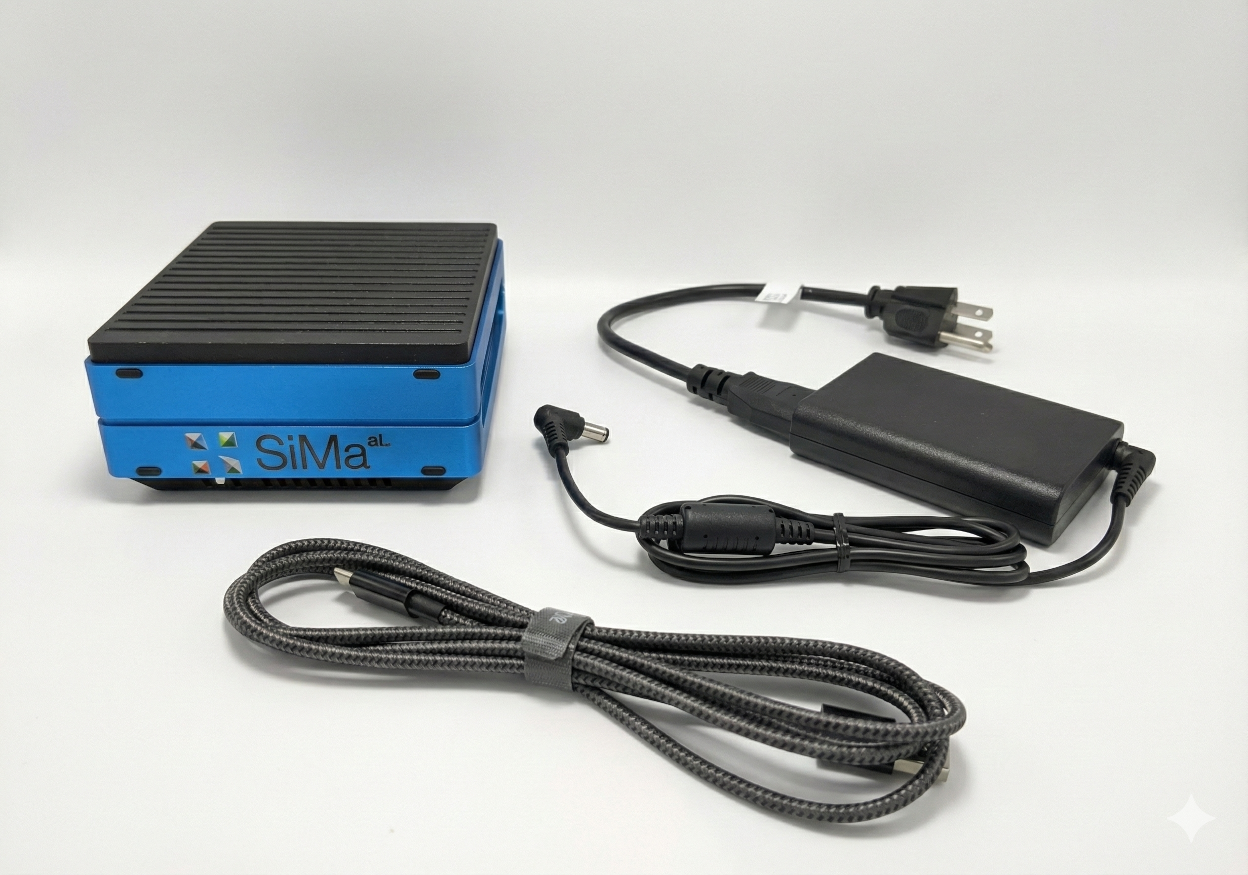
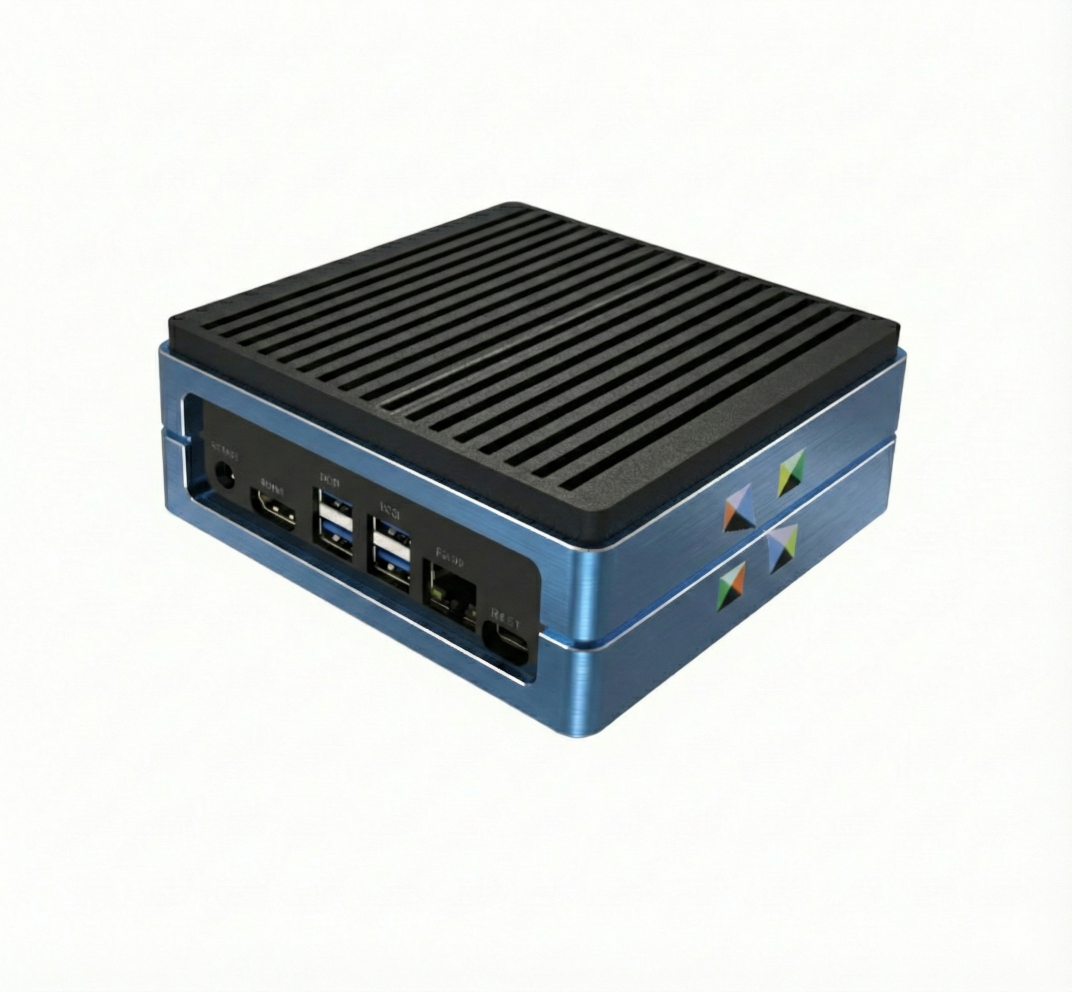
Interfaces
Click on each interface to learn more.
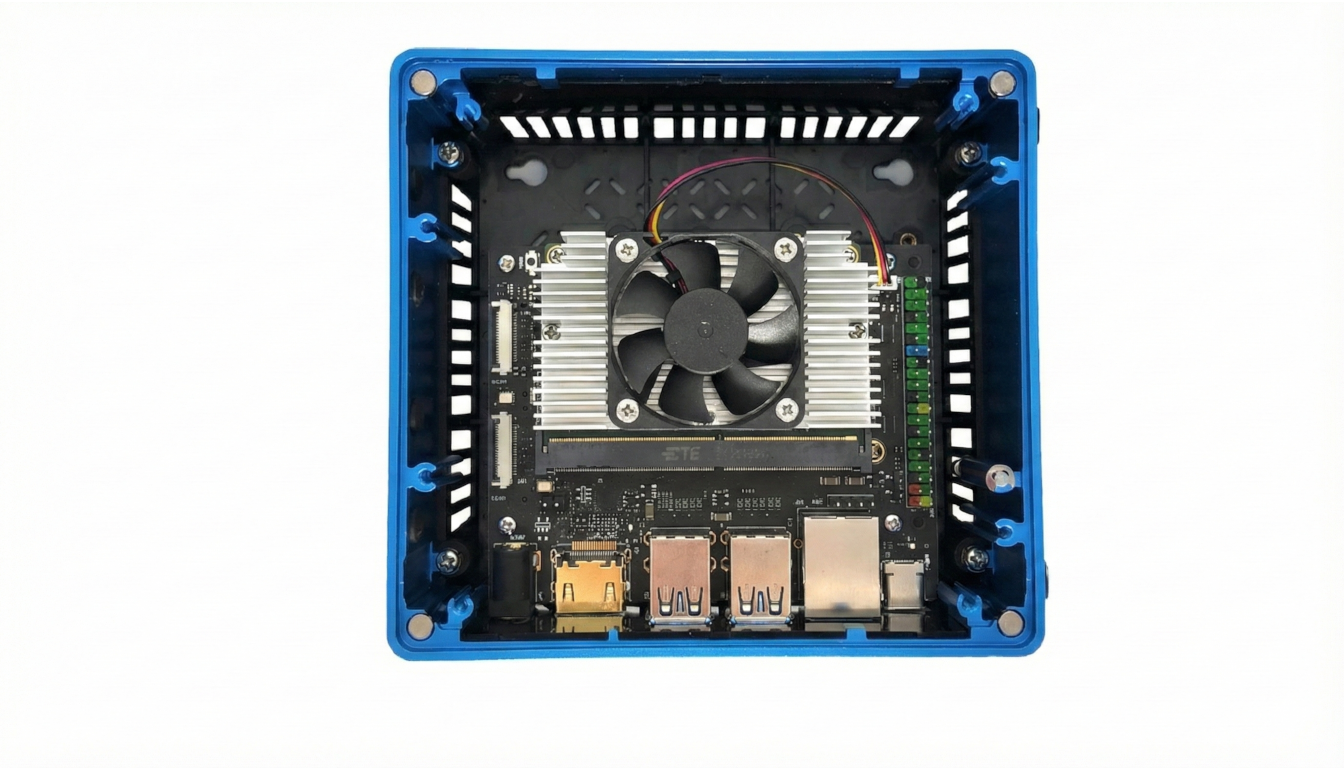
Inside The DevKit
Hover or tap on each marker to explore major components inside the SiMa DevKit. For detailed pinout and hardware information, see the SiMa SOM Carrier Board Data Sheet (PDF) .
Local Setup
In the standalone setup configuration, the Modalix DevKit 3.0 is used like a Linux PC. No network connection is required. Click on each item for more information.
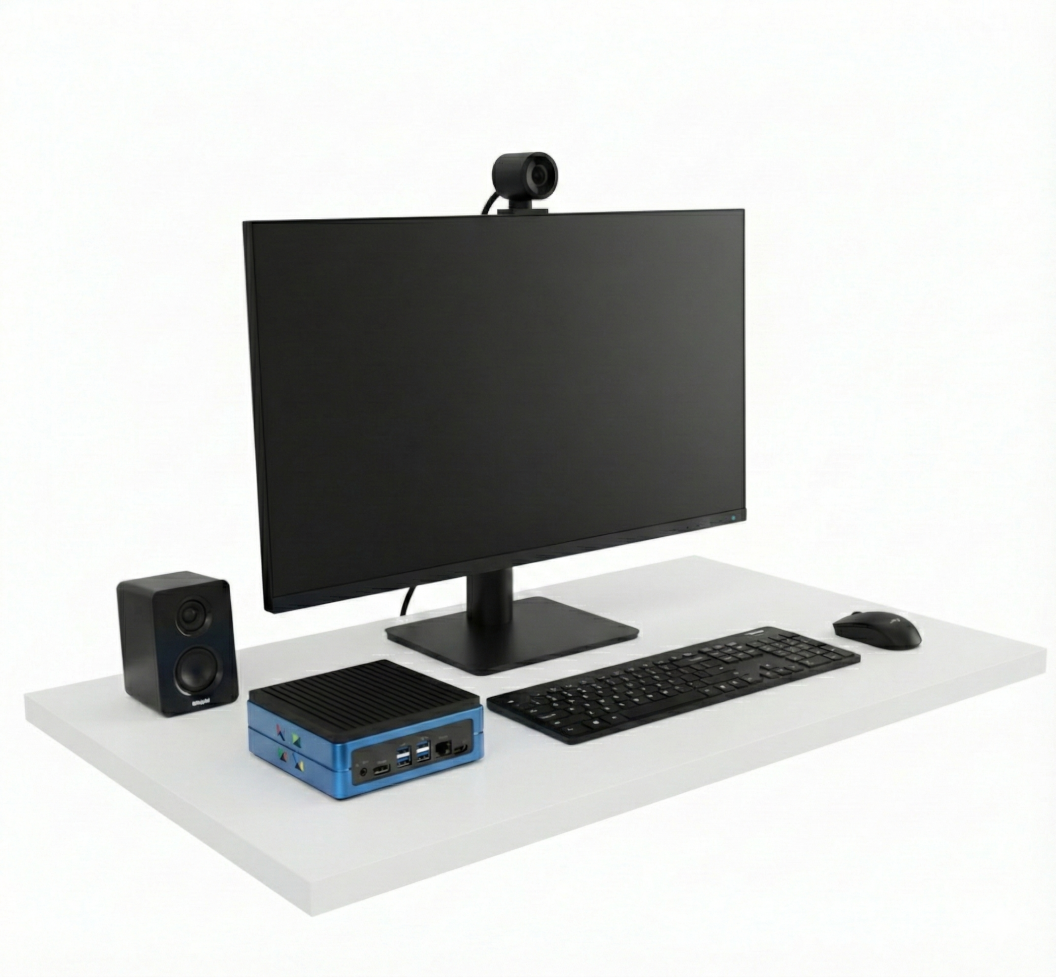
Connect the Power supply to the 12V Power input and power up the DevKit.
Login & Try Out Apps
-
Use the default username
simaand passwordedgeaito log in. -
Try Out Apps
Explore and run example applications on your DevKit by following the NEAT examples.
Remote Setup
Configure your DevKit for remote access using an external PC or Laptop. An Ethernet cable (not included in the Devkit) is required. The Devkit will be accessed over the network, for example via SSH.
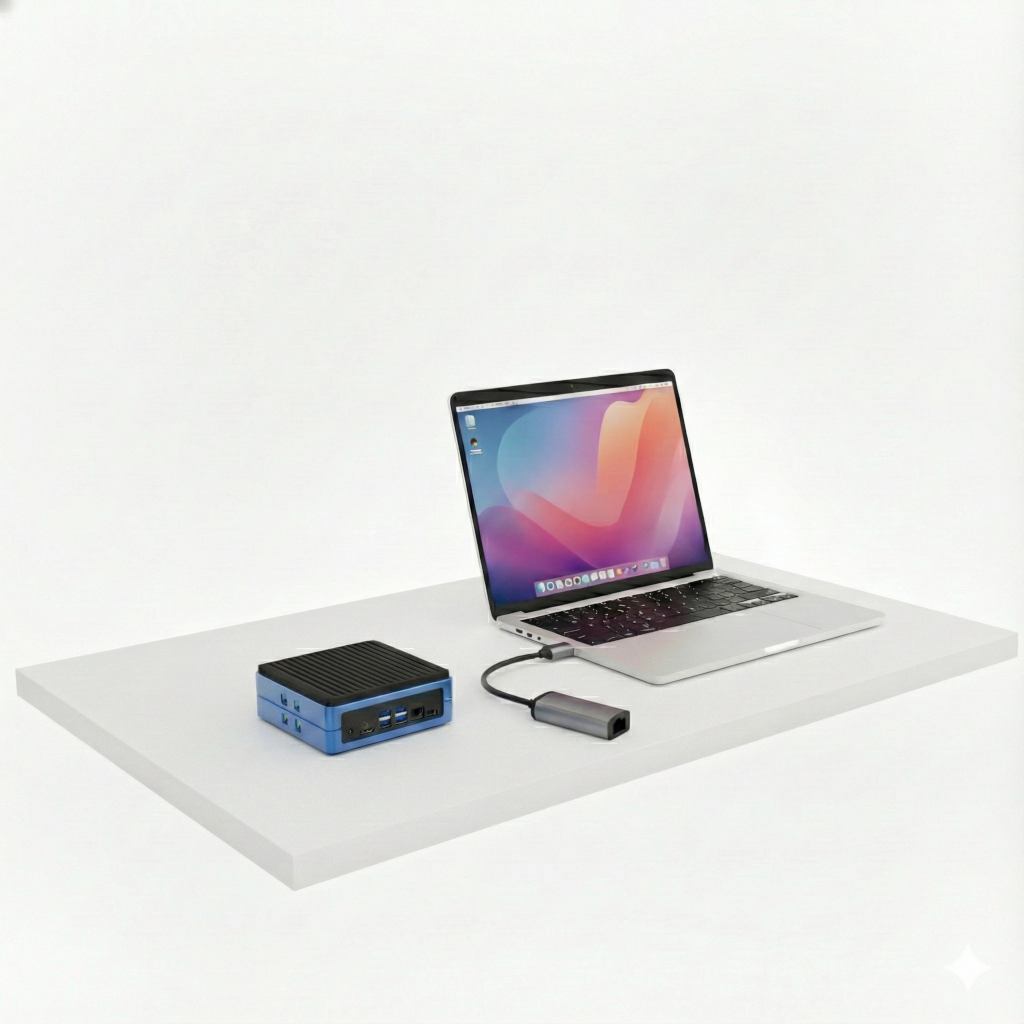
Connect via SSH
- Connect the DevKit and your laptop to the same network, or connect them directly with an Ethernet cable. The DevKit uses DHCP by default, so for a direct connection configure networking first — either set a static IP on your laptop or share your laptop’s network connection — as described in the Network Setup guide.
-
From a terminal on your laptop, connect using the DevKit’s mDNS hostname:
ssh sima@modalix.local— log in with passwordedgeai. -
If
modalix.localis not reachable (mDNS may not work on all operating systems, especially Windows), find the DevKit’s IP address instead:-
Install
sima-clion your laptop, then runsima-cli device discoverto list detected DevKits and their IP addresses, or -
Open the serial console
and run
ip a | grep inetto display the assigned IP address.
ssh sima@<devkit-ip>. -
Install
Prepare for Development
Once your DevKit is connected and powered up, you can begin developing with the SiMa Modalix DevKit 3.0.
1️⃣ Sign Up on the SiMa Developer Portal
Create an account at community.sima.ai. After registration, your account will require SiMa approval before you can download the SDK and related software.
2️⃣ Install the SiMa CLI
Download and install sima-cli
on your host machine
to access the SDK and developer tools.
Follow the Installation Guide.
3️⃣ Explore the Documentation
Access our technical documentation for hardware, software, and code examples at developer.sima.ai.
Troubleshooting
Common issues and solutions to help you get your SiMa DevKit running smoothly.
Make sure your laptop and the DevKit are connected to the same network.
Try connecting with
ssh sima@modalix.local.
The modalix.local address relies on mDNS, which may not work on all operating systems (especially Windows).
If modalix.local is not reachable:
-
After installing
sima-cli, runsima-cli device discoveron your host machine (while connected to the DevKit). This command lists all detected DevKits and their IP addresses. -
If no device appears, connect to the DevKit’s serial console from your host machine by running:
sima-cli serial -
Log in with username
simaand passwordedgeai, then typeifconfigto display the assigned IP address.
If sima-cli
cannot discover your DevKit, it's possible that your DevKit runs an older version of the firmware.
Check the next topic to learn how to update the DevKit.
Depending on the manufacturing date, your DevKit may be running an older firmware version that does not match the procedure described above. If your DevKit is running version 1.7, it must be converted to the 2.0 eLxr release before you can follow the Quick Start guide and try out the example applications.
To check your current firmware version and determine whether conversion is required, please follow the instructions in the conversion guide below.
DevKit 1.7 → 2.0 eLxr Conversion GuideWith your DevKit set up, install the Palette Neat SDK and run the example applications. Follow the NEAT documentation for installation and trying out apps.
sima
and password edgeai.
If these were changed, contact your administrator or SiMa support.
Supported Hosts
Ubuntu 22.04 is the supported platform for PCIe host setup. Windows 10 and Windows 11 support is currently in beta testing.

Ubuntu 22.04
Supported for production host setup.

Windows 10 / 11
Driver flow is available in beta testing.
Install the Card
Install the PCIe card and connect bring-up interfaces before software setup.
Host Setup
Install the host driver package based on your host OS.
sima-cli
first on your host machine.
Follow the setup guide:
sima-cli installation.
Linux host:sima-cli install drivers/linuxsima-cli install drivers/windowsVerify and Test
Use device discovery to confirm PCIe enumeration and connectivity.
sima-cli device discover SiMa PCIe Devices Detected
┏━━━━━━━┳━━━━━━━━━━━━━━━━━━━━┳━━━━━━━━━━━┳━━━━━━━━━━━┳━━━━━━━━━━━━━━┓
┃ OS ┃ Device Name ┃ Vendor ID ┃ Device ID ┃ Location ┃
┡━━━━━━━╇━━━━━━━━━━━━━━━━━━━━╇━━━━━━━━━━━╇━━━━━━━━━━━╇━━━━━━━━━━━━━━┩
│ linux │ Modalix HHHL v2 1R │ 0x1f06 │ 0x2123 │ 0000:04:00.0 │
└───────┴────────────────────┴───────────┴───────────┴──────────────┘
Detected PCIe virtual ethernet. Run throughput test now? [y/N]: y
🔗 Testing 10.0.0.1 -> 10.0.0.2 ...
✅ Throughput: 4.28 Gbps (healthy)Troubleshooting
Placeholder troubleshooting tips for common PCIe issues.